For this round of Shopify Theme Basics, we are looking at swatches: those little graphics of colours or patterns seen in many Shopify stores. Read on to learn when and why you’d want to use swatches, and how to get them set up.
What are swatches?
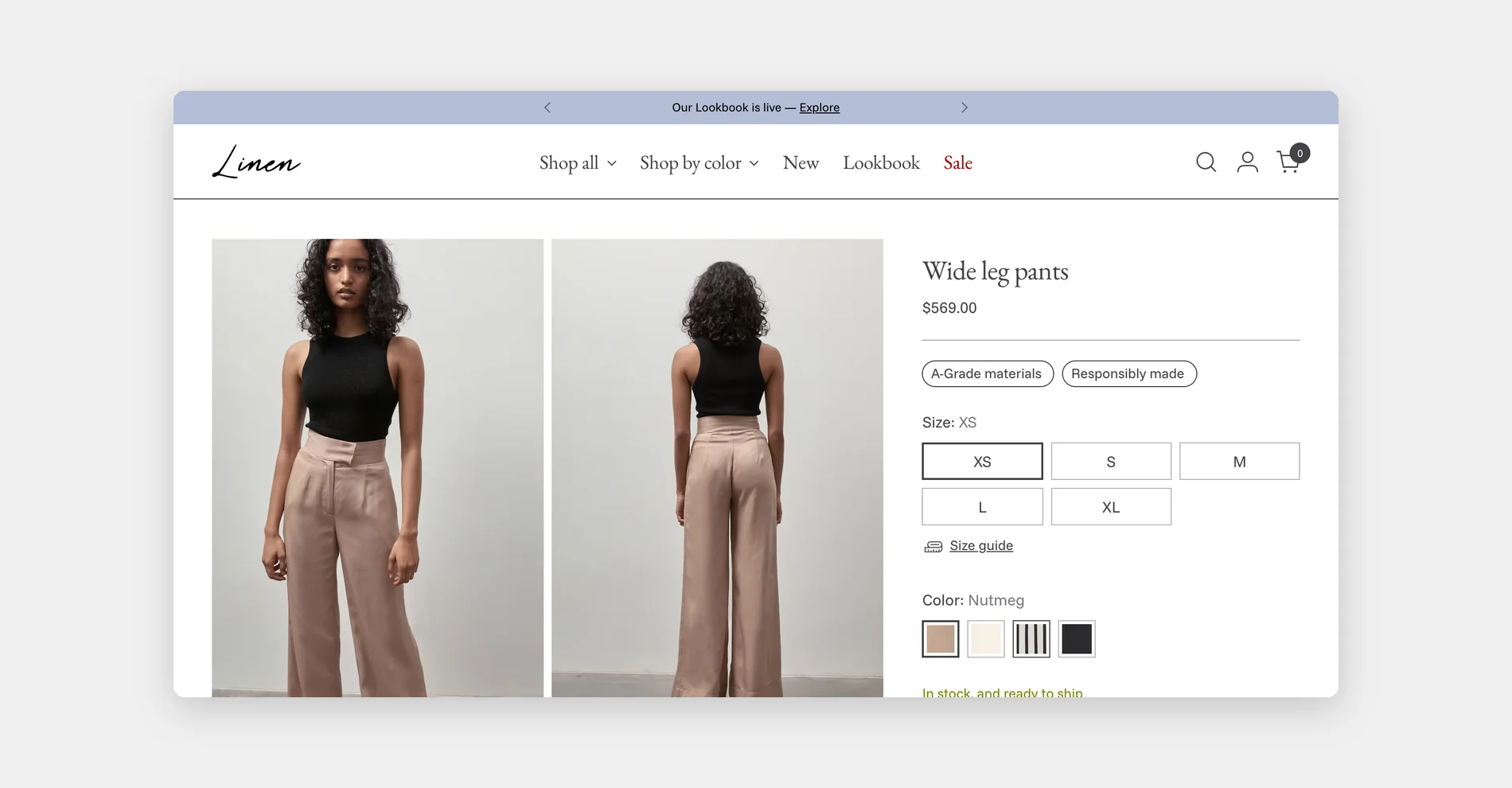
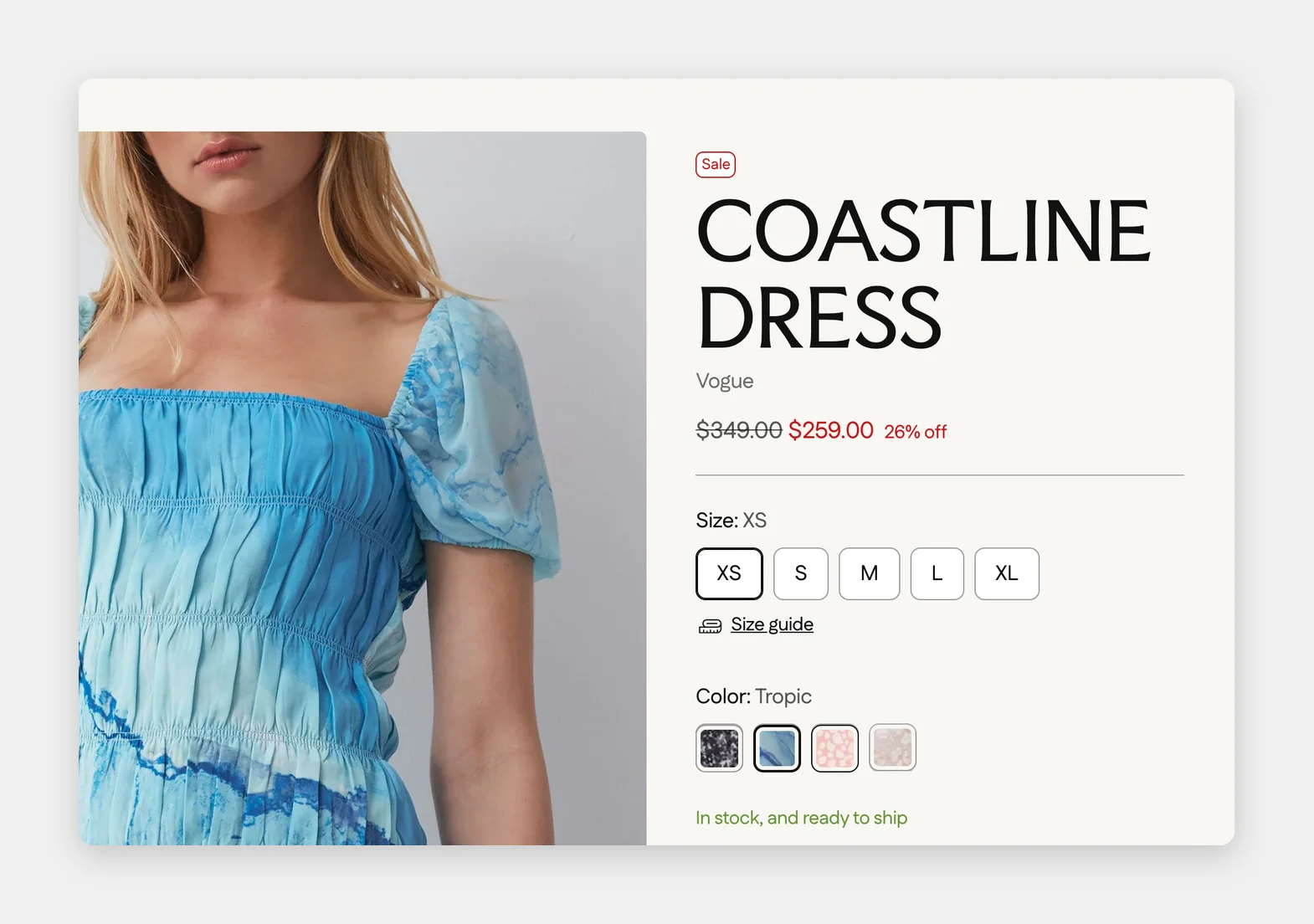
On Shopify, swatches are visual representations of your product variants. Instead of a dropdown menu that lists “Red,” “Blue,” and “Green,” swatches display variants as a row of colourful, clickable buttons.
Why use swatches?
Swatches are visually appealing, intuitive, and quicker to use than a dropdown menu. Customers can easily view all your product variants at a glance and select the one they want.
So just like a mega menu helps organise your navigation into a user-friendly experience, swatches do the same for your product options.
Plus, many themes that have swatches will automatically show ‘unavailable’ variants as tinted or crossed-out. That way, your customer isn’t disappointed when they select a variant from a dropdown, only to find it’s sold out.
When should I use swatches?
You might consider using swatches when your products have options for colour, texture, material, or any other visual feature. Customers don’t have to spend time going through variants one at a time — they can immediately spot the one they want (and they also don’t have to guess what “cerulean blue” looks like!)
Are swatches the same as buttons or pills?
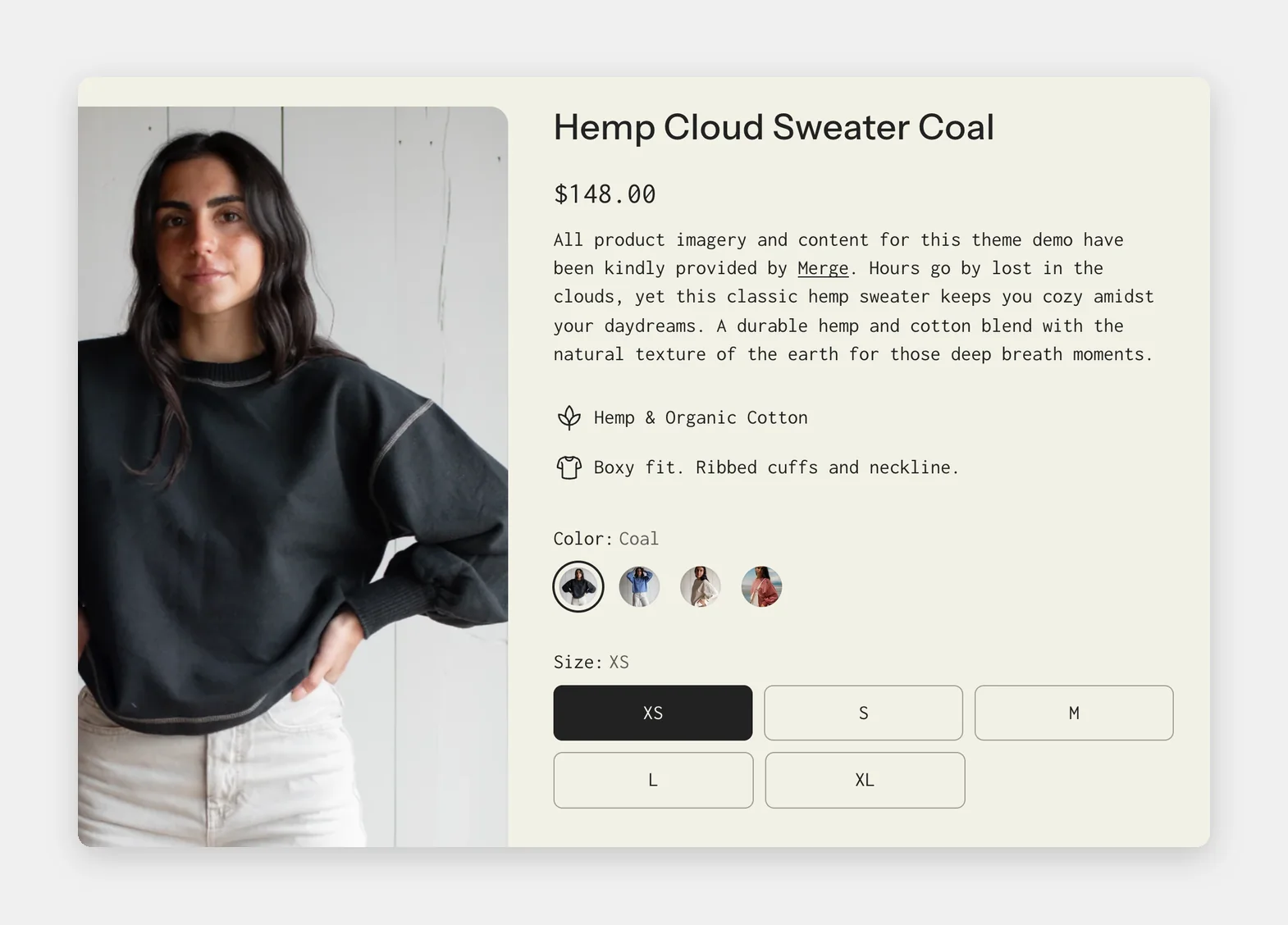
On many themes, variants can also be displayed as buttons (also called “chips” or “pills”). Unlike swatches, they don’t display a visual representation of variants. But similar to swatches, buttons are a great way to organise your variants for a better customer experience.
How do I set up swatches in my theme?
First, check your theme documentation for instructions, as the setup process for swatches varies from theme to theme. Swatches can use custom colours or you can upload an image of the precise colour or other aspect of your product.
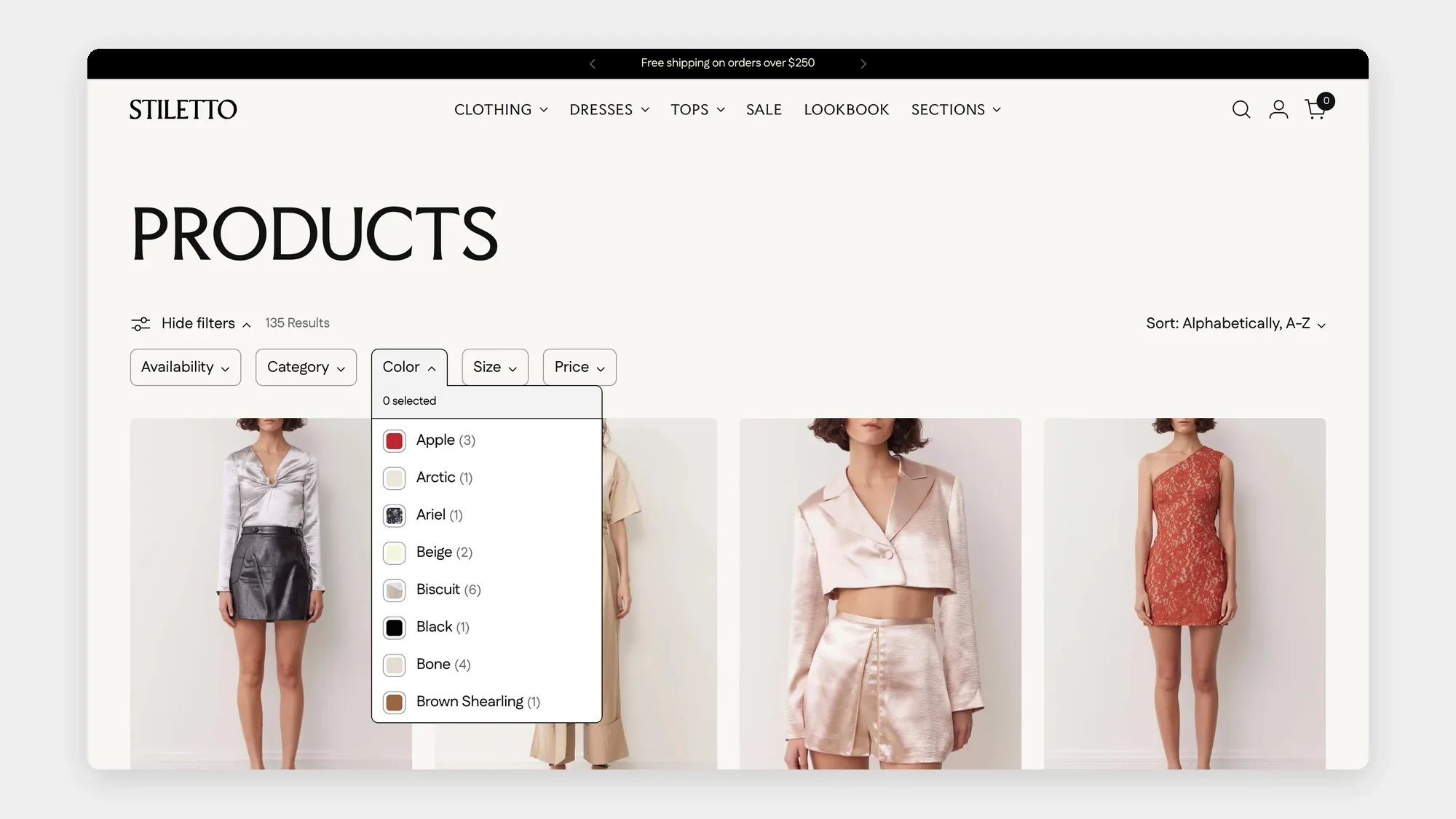
In themes like Eclipse or Stiletto, there are three common ways to set up visual swatches:
- Default colours. When enabled, swatches will display colours for variant names that match any of the 140 default web colours. When setting up your variants, enter the exact colour name as the option value. If your variants have unique names (e.g., “Cerulean” instead of “Blue”), you’ll want to use the next two options.
- Custom colours. Use hex codes (e.g.
#00b300) to specify the precise colour of your product. Typically, you can list custom swatch colours in your theme settings. You can use free tools like HTML Colour Codes to pick the hex code you want. - Custom images. If you want to represent your product’s material or texture—or even be more precise with the colour—you can upload a small square image. Typically, you’ll need to create these small PNG images by screenshotting or cropping your product images. These images are then usually connected to swatches by matching the image file name to the variant name (e.g., if your variant is “Red Rose,” your image might be named
red-rose.png).
Swatches do require a few steps to set up, but the enhanced customer experience is often worth it. You can check out the Stiletto guide to variant options as an example.
What are sibling product swatches?
Sibling products allow you to set up variants as individual products with their own images and product details. When you group related products into ‘sibling’ collections, they will appear as swatches on each ‘sibling’ product page, allowing customers to easily navigate between these related products.
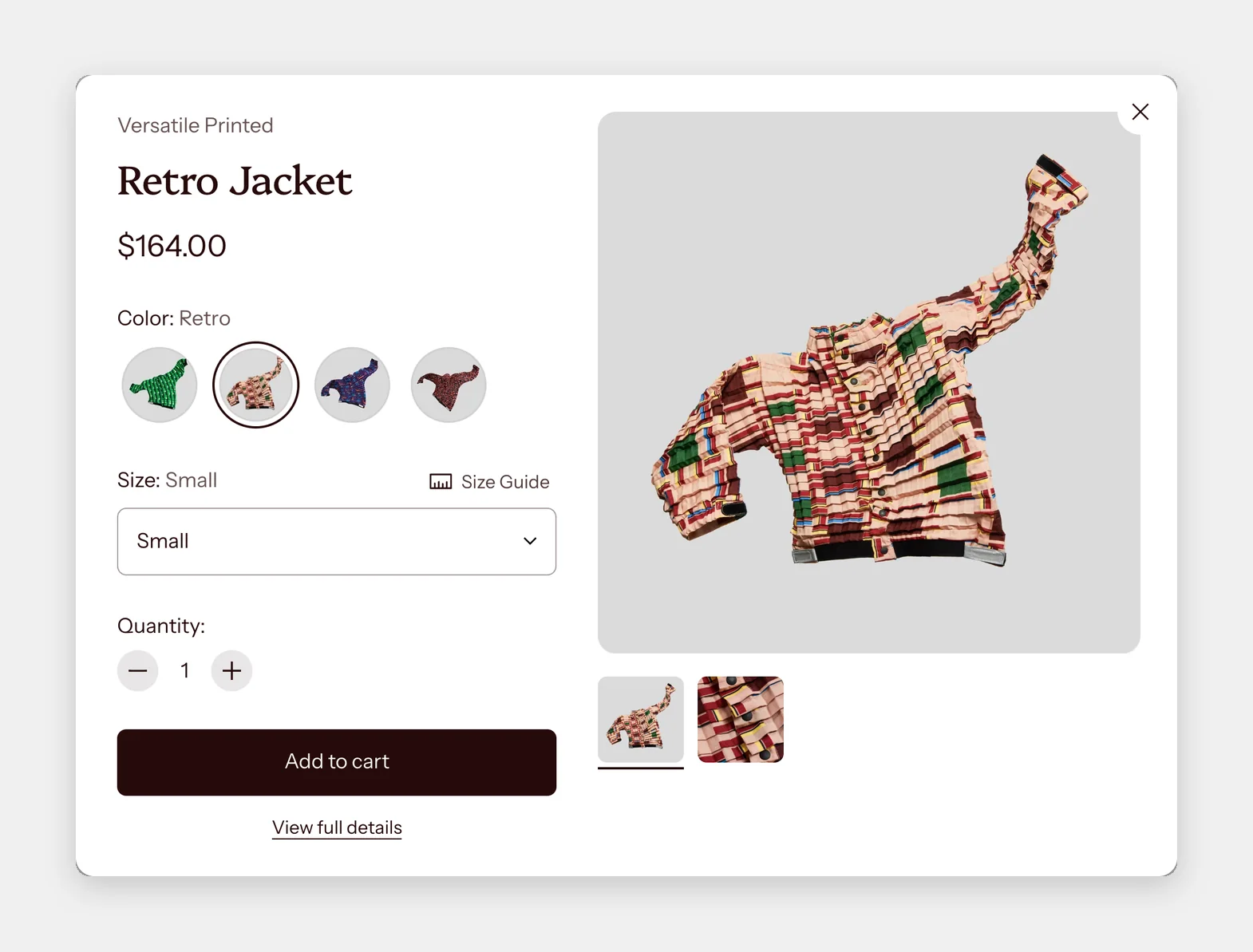
You can check out Stiletto’s guide to sibling swatches to see how Fluorescent themes use this feature.
That wraps up our guide to swatches! Check out our other Shopify Theme Basics articles.
How else can we help?
At Fluorescent, we love building relationships with our customers! We’re here to support your business and help you grow.
If you are…
…already using one of our themes and need some assistance, head over to our documentation.
…looking for a new theme, check out our themes Eclipse, Stiletto, and Cornerstone.
…an agency or freelancer, read about our partner programme and how it can help grow your business.